
Alt code list with decimal numbers
Find the exact numerical sequences to manually type symbols and special characters in any document.
How to use alt codes manually
Step 1: Activate Num Lock.
Ensure that the Num Lock key on your keyboard is turned on. The numeric keypad will not input the correct data for the code if this is disabled.
Step 2: Look up the decimal code.
Browse through our categorized lists or use the search bar to find the specific character you need and its unique numerical sequence, such as Alt 0176 for a degree symbol.
Step 3: Hold the Alt key.
Press and hold down the Alt key on your physical keyboard. This key is typically found on either side of the spacebar.
Step 4: Type the code on the Numpad.
While continuing to hold the Alt key, type the numbers using the numeric keypad located on the right side of your keyboard.
Step 5: Release the Alt key.
After entering the full sequence, release the Alt key. The character will instantly appear in your text field or document.
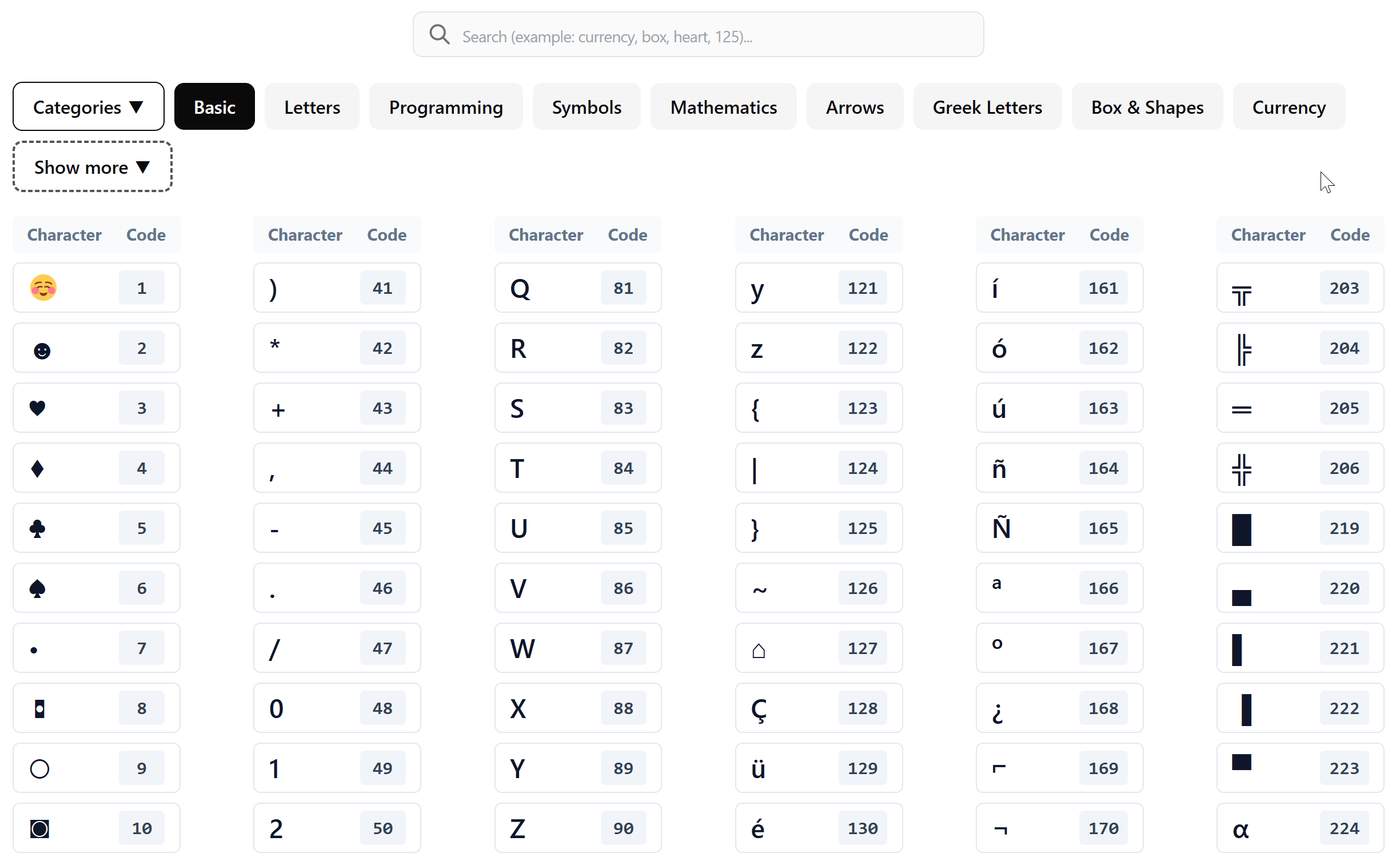
What is an alt code list with decimal numbers
An alt code is a shortcut that allows you to access thousands of hidden characters within the Windows operating system. Unlike a standard all-in-one symbol tool where you only copy and paste, this alt code list with decimal numbers provides the raw data you need to type characters directly from your hardware.
Using these codes ensures that your symbols are formatted correctly as text, making them ideal for high-stakes documents where precision is required.
How to type alt codes on laptop without a numeric keypad
A common challenge for many users is how to type alt codes on laptop devices that lack a dedicated Numpad. Since these codes require the numeric keypad to function, traditional typing might not work on compact keyboards.
To solve this, you can use the “Click-to-copy” feature on our site as a temporary fix. However, for a more professional workflow in Microsoft Word, we recommend exploring our Alt X tool.
This method allows you to type a hex code and press Alt + X to generate a character, which is the perfect solution for laptops without a full keypad.
Why use specific alt codes for Word and Excel
When working on complex spreadsheets or reports, using alt codes for Word and Excel is often better than inserting images or icons. These decimal codes create true text-based alt codes for symbols and characters, meaning they will scale perfectly with your font size and color.
This is especially useful for mathematical signs, currency symbols, and professional borders. If you find yourself using many icons and want to track the length of your professional summary, you can easily pair this tool with our online word counter to keep your document within the required limits.
Beyond simple characters
While our primary focus is providing the numerical codes, we understand that modern communication often requires more visual flair. For social media or casual messaging, you might want to supplement your professional typing with our emoji database.
However, for formal correspondence, relying on the alt code list with decimal numbers remains the gold standard for reliability and cross-platform compatibility.
Conclusion
Mastering the use of Alt codes gives you total control over your keyboard. By using this comprehensive alt code list with decimal numbers, you can quickly find any hidden symbol and type it manually without breaking your typing flow. Whether you are using a desktop with a Numpad or looking for a workaround on a laptop, our resources are designed to make your digital writing as efficient as possible.