If you often work with symbols, accented letters, or special characters, it is easy to assume that Alt code and Alt X are the same thing. Both methods can turn a short code into a character on your screen, and both are commonly mentioned in tutorials about typing symbols on Windows. Because of that, many users try one method while expecting the other, then wonder why nothing happens.
The difference is simple once you see how each one works. Alt code is a Windows keyboard input method that usually depends on the numeric keypad. Alt X is a Unicode conversion shortcut used mainly inside Microsoft Word and some Microsoft Office apps. They may look similar at first glance, but they do not work in the same places, and they do not follow the same input method.
Understanding Alt code vs Alt X helps you save time, avoid typing mistakes, and choose the right method for the app you are using.
What is Alt code?
Alt code is a way to insert characters by holding the Alt key and typing a numeric code on the keyboard.
For example, on many Windows systems, you can hold Alt and type a number on the numeric keypad to create a symbol or special character. This method has been used for years and is still popular for people who need to insert characters quickly without opening extra menus.
The important detail is that Alt code usually relies on the numeric keypad. That is why many laptop users run into trouble. If a laptop does not have a dedicated numpad, traditional Alt code input may not work the way they expect.
If you want to explore a larger list of decimal Alt codes, a useful reference is:
https://copypastefree.com/alt-code-decimal/
What is Alt X?
Alt X is a shortcut that converts a Unicode code into a character, mainly in Microsoft Word.
Instead of holding Alt and typing numbers on a numpad, you type the Unicode value first, then press Alt + X. Word will convert that code into the matching symbol or letter.
For example, if you type 00A9 and then press Alt + X in Microsoft Word, it becomes ©.
This makes Alt X especially useful for people who work in Word and need to insert accented letters, Greek characters, mathematical symbols, or other Unicode characters without memorizing traditional Alt codes.
A practical collection of Alt X codes for Word is available here:
https://copypastefree.com/alt-x-for-word/
The core difference between Alt code vs Alt X
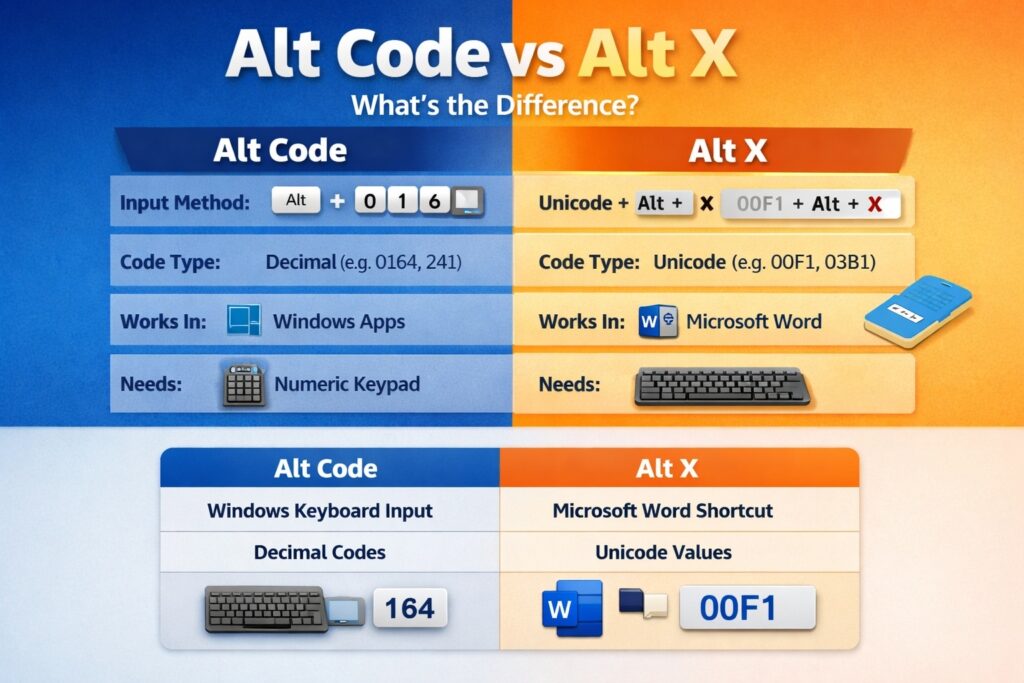
The fastest way to understand Alt code vs Alt X is to compare where they work, how you type them, and what kind of code they use.
Input method
- Alt code works by holding Alt while typing a numeric code, usually on the numpad.
- Alt X works by typing a Unicode value first, then pressing Alt + X.
Where they work
Alt code is mainly a Windows input method and can work in many desktop programs, depending on the app and keyboard setup.
Alt X is most closely associated with Microsoft Word. It is designed for Word-style Unicode conversion and is not a general Windows-wide method in the same way Alt code is.
Code type
- Alt code usually uses decimal numbers.
- Alt X usually uses Unicode values, often written in hexadecimal form such as 00F1, 03B1, or 221E.
Keyboard requirement
Alt code often needs a numeric keypad.
Alt X does not require a numpad in the same way, which is one reason many laptop users find it easier inside Word.
A simple example
Here is a quick example to make the difference clearer.
If you want to type ñ:
- Using Alt code: You may need to hold Alt + 164.
- Using Alt X: In Microsoft Word, type 00F1, then press Alt + X.
When Alt code is the better choice
Alt code is a good option when you are working in Windows programs outside Word and you already know the decimal code for the character you need.
It is especially useful if:
- you use a full-size keyboard with a numpad
- you want a quick Windows-based typing method
- you often insert common characters in desktop applications
Alt code can feel very fast once it becomes part of your habit. For users who regularly type symbols in older desktop workflows, it is still a practical method.
When Alt X is the better choice
Alt X is the better choice when you are working inside Microsoft Word and want a cleaner way to insert Unicode characters.
It is especially useful if:
- you work with Word documents often
- you do not have a numeric keypad
- you need accented letters, technical symbols, or language characters
- you prefer typing a code first and converting it instantly
For many users, Alt X for Word feels more modern and flexible because it works well with Unicode characters and does not depend on traditional numpad behavior.
Why Alt code often fails on laptops
One of the biggest reasons people get confused about Alt code vs Alt X is that Alt code tutorials often assume the keyboard has a numeric keypad.
Many laptops do not. Even when a laptop has a hidden numeric layer, it may require extra keys such as Fn or specific keyboard settings. In some cases, the app itself also affects whether the code works correctly.
That is why users on compact Windows laptops often search for alternatives. In practice, the easiest fallback methods are usually:
- using Alt X in Word
- copying and pasting the character
- opening Character Map
- using a symbol reference page
If you need a broader symbol collection instead of memorizing codes, this page is a practical place to start: https://copypastefree.com/symbol/
Alt code vs Alt X in Microsoft Word
Inside Microsoft Word, Alt X usually has a major advantage because it is built around Unicode conversion.
That means you can type a code such as 03C0 and press Alt + X to convert it into π, or type 221E and press Alt + X to get ∞.
This workflow is often faster than searching through menus, especially if you repeat the same symbols often.
Alt code can still work in Word in some situations, but Alt X is generally the more natural choice there. If the task is specifically about Word documents, Unicode symbols, or language characters, Alt X is usually the method worth trying first.
Alt code decimal vs Unicode values
Another common source of confusion is the code format itself.
Alt code decimal uses decimal numbers. These are standard base-10 numbers such as 164, 241, or 0176, depending on the character and the method being referenced.
Alt X uses Unicode values that are commonly written in hexadecimal. These may include letters and numbers together, such as 00F1 or 03A9.
So even if two methods can produce similar-looking results, the code you type is not necessarily interchangeable.
That is why an Alt code decimal list and an Alt X list are not the same thing. If you use the wrong code in the wrong method, nothing happens or the wrong character appears.
Which one is easier for most users?
For general Windows use, Alt code is still useful, especially on keyboards with a numpad.
For Microsoft Word, Alt X is usually easier.
For laptop users without a numpad, Alt X often feels more convenient than traditional Alt code, at least inside Microsoft Word. Outside MS Word, copying from a trusted symbol page or using Character Map may be simpler than forcing an Alt code method that your keyboard does not support well.
In everyday use, the best choice depends less on theory and more on context:
- If you are in Word, try Alt X first.
- If you are in another Windows app and have a numpad, Alt code may be faster.
- If neither method is convenient, use a symbol collection and paste the character directly.
A quick comparison table
Alt code
- Works mainly as a Windows keyboard input method
- Usually uses decimal codes
- Often requires a numeric keypad
- Useful across many desktop apps
Alt X
- Works mainly in Microsoft Word and some Office environments
- Uses Unicode values, often in hexadecimal
- Does not depend on a numpad in the same way
- Excellent for Word documents and Unicode characters
Final answer
The difference between Alt code vs Alt X comes down to method, environment, and code format.
Alt code is the traditional Windows approach that usually depends on the numeric keypad and decimal input. Alt X is a Word-focused Unicode shortcut where you type the code first and then press Alt + X to convert it.
Neither method is universally better in every situation. Alt code is still useful for Windows users who work with a full keyboard, while Alt X is often the smarter choice for Word users, especially on laptops without a numpad.
Once you understand where each method works best, inserting symbols becomes much easier and far less frustrating.