Typing special characters on a laptop should be simple, but in reality, many Windows 11 users run into small frustrations that slow everything down.
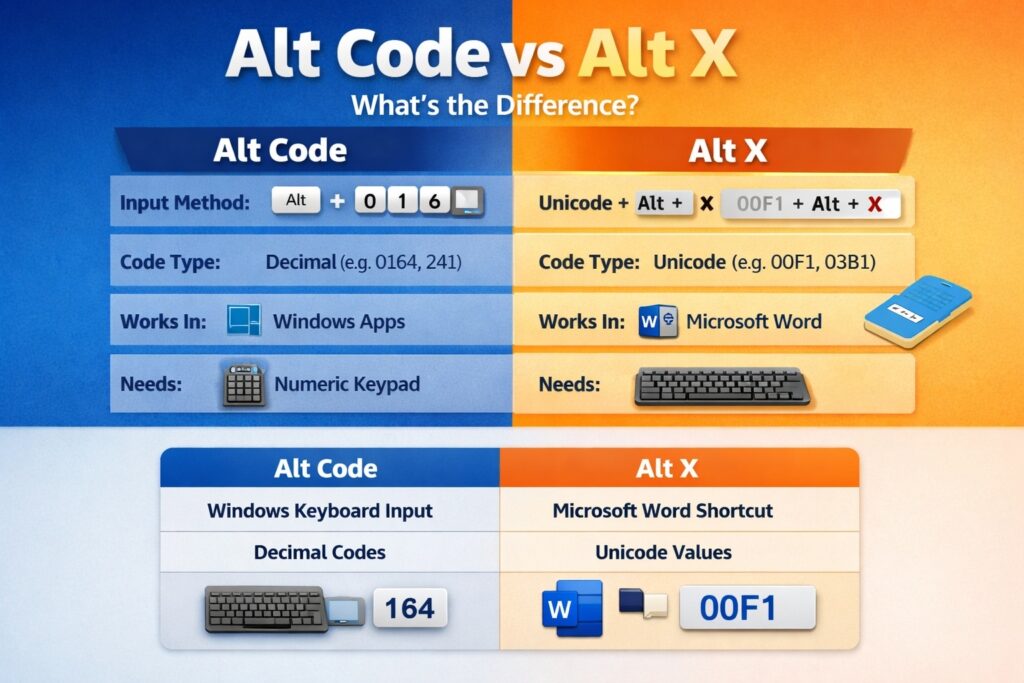
One common example is the ñ character. It looks basic, yet many people quickly discover that the usual Alt code method does not work on their laptop keyboard. This often happens because the device has no dedicated numpad, which makes traditional number-based input much less practical.
If you are trying to type ñ in laptop Windows 11 without numpad, the good news is that there are still several easy ways to do it.
Some methods are perfect for Microsoft Word, while others work across many apps and websites. In this guide, you will learn why the Alt code method often fails on laptops, and you will also see the most practical ways to type ñ whenever you need it.
Why many Windows 11 laptops cannot type ñ with Alt code
A lot of older guides tell users to hold the Alt key and enter a number code to create special characters.
That method can still work on some keyboards, but it becomes a problem on many modern laptops.
The main reason is simple. Traditional Alt codes usually rely on a numeric keypad, not the row of number keys at the top of the keyboard.
Many Windows 11 laptops, especially thin and compact models, do not have a dedicated numpad at all. Even when a laptop has embedded number functions, the experience is often awkward and inconsistent.
Because of that, users may try an Alt code for ñ and think something is wrong with Windows 11, Microsoft Word, or their keyboard.
In most cases, the laptop is not broken. The issue is just that the standard Alt code method was designed around a keyboard layout that many laptop users no longer have.
That is exactly why it is useful to know other ways to type this character.
Method 1: Use Alt X in Microsoft Word
If you are using Microsoft Word, this is one of the easiest methods.
Word supports a feature called Alt X, which converts a Unicode code into the matching character.
To type ñ, place your cursor where you want the letter to appear, type 00f1, then press Alt + X.
Word will instantly convert it into ñ.
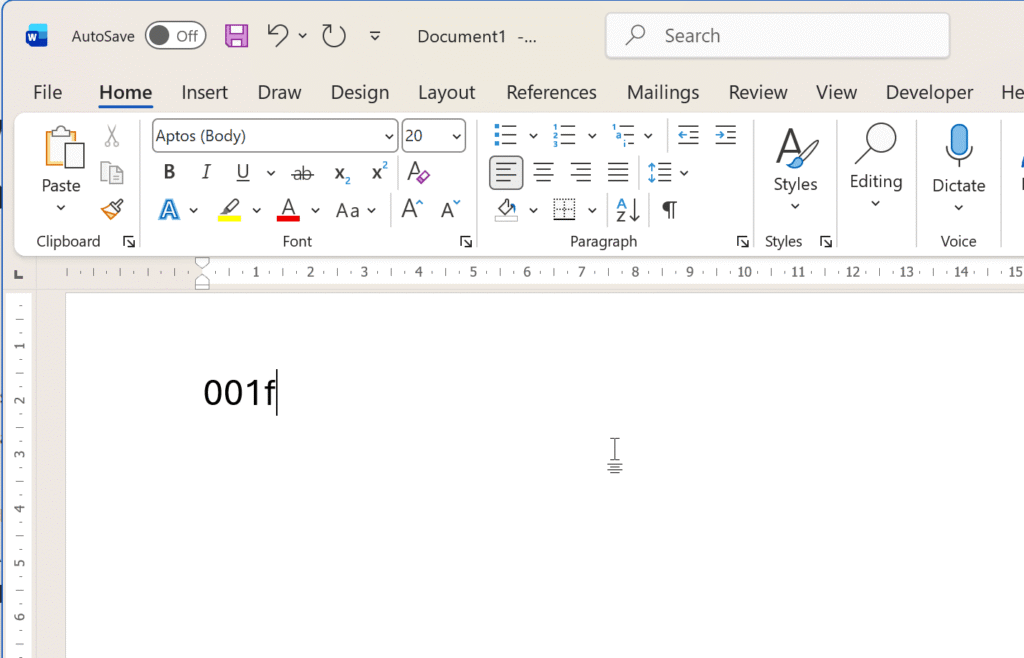
If you need the uppercase version, type 00d1 and then press Alt + X to get Ñ.
This method is very convenient because it does not require a numpad. It is especially useful for people who write documents, assignments, reports, or language-related content in Microsoft Word. It also feels cleaner than searching the web every time you need a special character.
Method 2: Copy the ñ character and paste it where needed
If you only need the character once in a while, the fastest solution is often the simplest one.
You can just copy the character and paste it into the app, website, or document you are using.
- Lowercase: ñ
- Uppercase: Ñ
This method works well in browsers, chat apps, text editors, forms, notes, and many other places.
It is not the most elegant long-term solution, but it is fast, easy, and reliable. For someone who only occasionally needs to type ñ without numpad, copy and paste is often the most practical option.
For more special character variations, you can also explore our Accented Letters page. Simply type a letter such as n to see different character variations you can copy instantly.
Method 3: Use Character Map in Windows 11
Character Map is a built-in Windows tool that lets you browse and copy special characters.
It is useful when you need a letter like ñ and do not want to depend on Word-specific shortcuts.
To open it, click Start and type Character Map, then open the app.
Once it appears, look for the search or browsing area and find ñ. If you want to search more effectively, look for the character name associated with it.
The clearest thing to search or identify is Latin small letter n with tilde.
For the uppercase version, look for N with tilde.
After finding the correct character, select it, copy it, and paste it into the place where you need it.
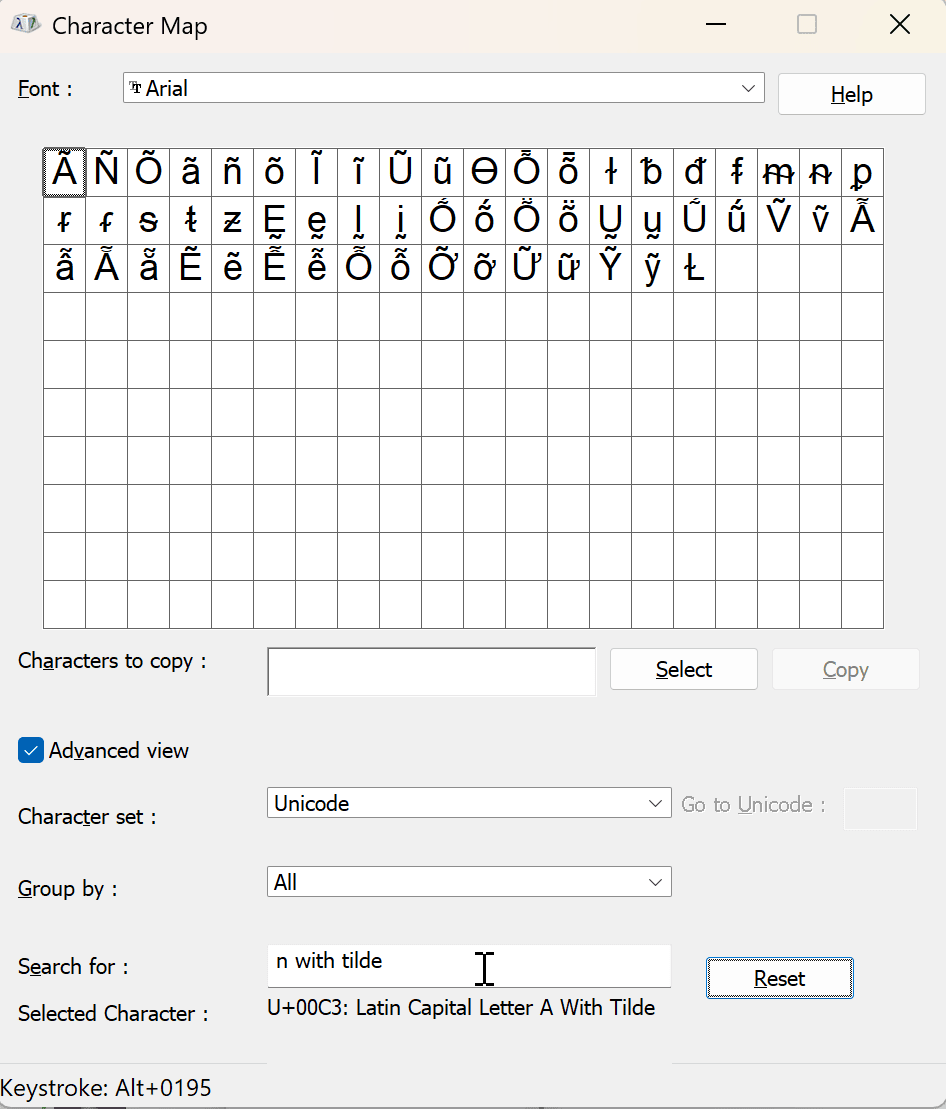
This method works well because it is built into Windows 11 and does not require any extra software.
It is also helpful when you need other special characters in addition to ñ.
Method 4: In MS Word or MS Outlook, press Ctrl + Shift + ~, then press N
Another useful method works in Microsoft Word and Outlook.
These apps support accent-style shortcuts for some characters.
To type ñ, press Ctrl + Shift + ~, release the keys, and then press n.
If you want Ñ, use the same shortcut and then press uppercase N.
This is a handy option for people who frequently write in Spanish or need the letter often in Microsoft Office.
However, it is important to note that this method is mainly useful inside Word and Outlook, not everywhere in Windows 11.
Method 5: Add a keyboard layout that supports ñ
If you need this character regularly, changing or adding a keyboard layout can be a smarter long-term solution.
Windows 11 allows you to install additional keyboard layouts for different languages.
For example, if you add a Spanish keyboard layout, typing ñ becomes much easier because the character is naturally included in that layout.
This is far more convenient than memorizing codes or opening extra tools every time.
To do this in Windows 11, open Settings, go to Time & language, then open Language & region.
Add the language or keyboard layout you want, and switch to it whenever you need to type ñ.
This approach is useful across many programs, not just Microsoft Word.
It can work in browsers, email clients, messaging apps, note-taking apps, and many other places, which makes it one of the best solutions for anyone who often needs to type ñ in laptop Windows 11 without numpad.
Method 6: Use the Windows on-screen keyboard
Another method that can work in many situations is the Windows on-screen keyboard.
This is especially helpful if you do not want to change your physical keyboard or if you want a quick visual way to enter special characters.
You can search for On-Screen Keyboard in Start and open it.
Depending on your active keyboard layout, you may be able to access special characters more easily, including ñ if the selected layout supports it.
This option is not always the fastest, but it can be useful when you are working on a laptop without a numpad and need a method that works outside Microsoft Word.
Which method is best?
The best method depends on where you are typing and how often you need the character.
If you are in Microsoft Word, the 00f1 + Alt X method is one of the fastest options.
If you are only typing ñ once or twice, copying and pasting the character is perfectly fine.
If you want something built into Windows 11, Character Map is reliable.
If you need to type ñ often in many apps, adding a keyboard layout is probably the most useful long-term choice.
For Office users, the Ctrl + Shift + ~ shortcut is also very convenient, but it is not as universal as the other options.
Final thoughts
Trying to type ñ in laptop Windows 11 without numpad can feel annoying at first, especially when common Alt code instructions do not work on your keyboard.
Fortunately, you are not stuck. There are several practical ways to solve the problem, and some of them are even faster than the classic numpad method.
If you are in Word, using 00f1 with Alt + X is one of the easiest solutions.
If you need a quick universal fix, you can simply copy and paste ñ.
Character Map, keyboard layouts, and the on-screen keyboard also make it possible to type the letter without relying on a numpad.
Once you know these options, typing ñ on a Windows 11 laptop becomes much easier, and you can also use the same ideas to enter many other special characters whenever you need them.