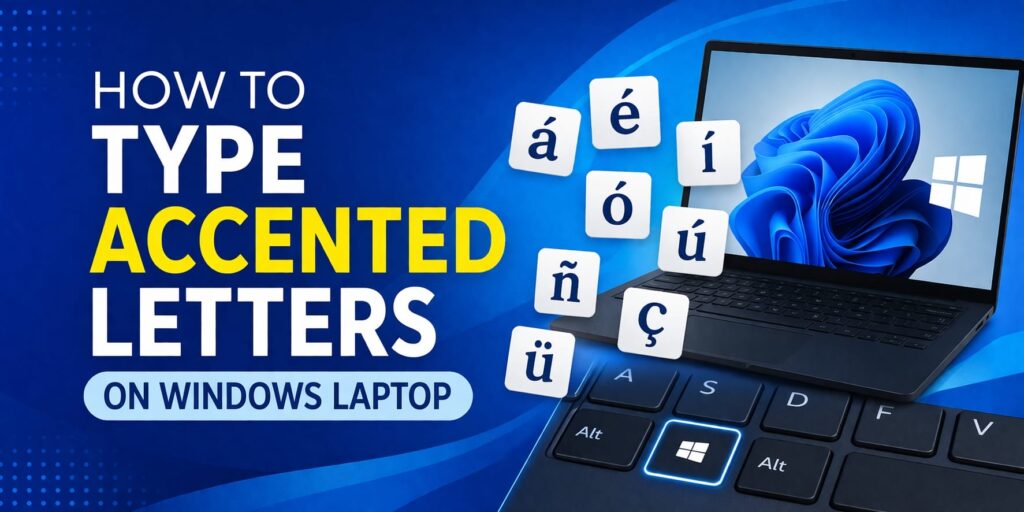
Typing accented letters on a Windows laptop can feel oddly difficult until the right method clicks. One minute you need ñ for Spanish, the next you need é for French, ü for German, or ç for Portuguese and Turkish text. Many people assume they need a special keyboard, but Windows already gives several practical ways to enter these characters.
The easiest method depends on what kind of laptop and app you are using. Some people prefer keyboard shortcuts in Microsoft Word. Others rely on Alt codes, the Character Map tool, or a symbol library they can copy from in seconds. Once these options are clear, typing accented letters becomes much faster and less frustrating.
This guide explains how to type accented letters on Windows laptop in a practical way, with clear steps for common letters such as ñ, á, é, ü, and ç.
Why accented letters matter
Accented letters are not just decorative versions of regular letters. In many languages, they change pronunciation, meaning, and spelling accuracy.
For example, these characters appear constantly in everyday writing:
- ñ in español or piñata
- á and é in names and borrowed words
- ü in German words such as über
- ç in words like façade or francês
Using the correct letter makes text look more polished and prevents mistakes, especially in schoolwork, documents, emails, language learning, and professional writing.
Method 1: Use Alt codes on Windows laptop
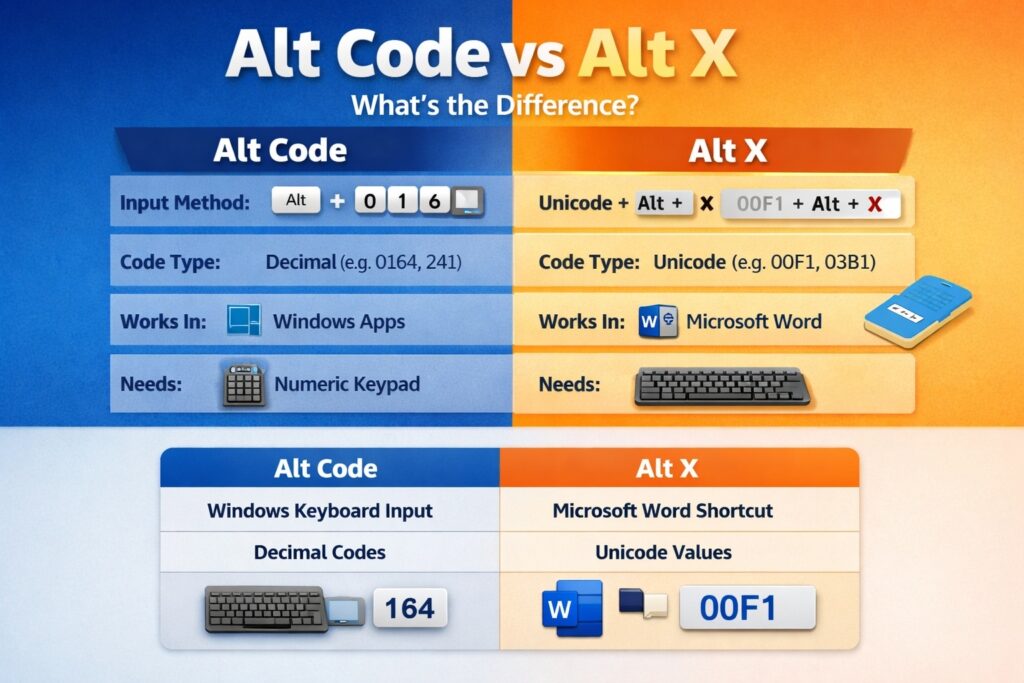
One of the most reliable answers to how to type accented letters on Windows laptop is the Alt code method. This works by holding the Alt key and typing a numeric code.
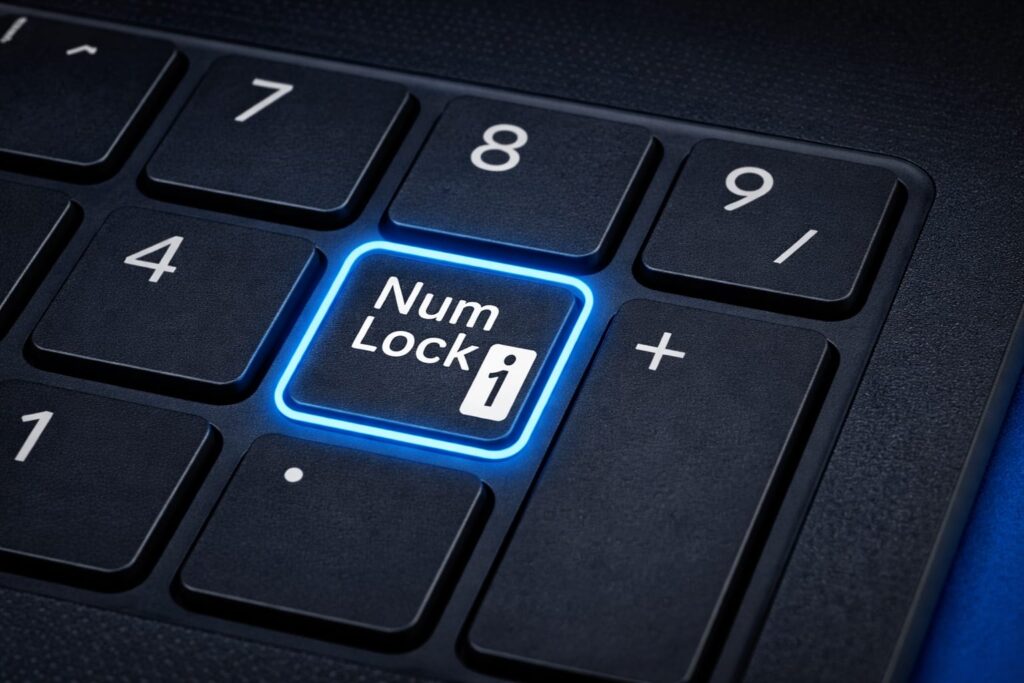
On some laptops, this can be tricky because many do not have a full numeric keypad. If your laptop has a dedicated numpad, the process is straightforward. If not, you may need to enable Num Lock and use the embedded number keys, depending on your keyboard model.
Here are a few common examples:
Alt + 164 = ñ
Alt + 165 = Ñ
Alt + 160 = á
Alt + 130 = é
Alt + 129 = ü
Alt + 135 = ç
To use an Alt code:
Step 1: Turn on Num Lock if your laptop requires it.
Step 2: Hold down the Alt key.
Step 3: Type the numeric code on the number pad.
Step 4: Release Alt, and the accented letter will appear.
If you want a larger reference for many characters, accents, and symbols, a useful place to check is https://copypastefree.com/alt-code-decimal/. It can save time when you need more than just a few memorized codes.
Method 2: Use Alt X in Microsoft Word
If you work in Microsoft Word, Alt X is often faster than traditional Alt codes. This method converts a Unicode number into a character directly inside the document.
For example, you can type the Unicode value first, then press Alt + X to transform it into the correct letter or symbol.
To use Alt X in Word:
Step 1: Open Microsoft Word.
Step 2: Type the Unicode value for the character.
Step 3: Press Alt + X.
Step 4: MS Word will convert that code into the accented letter.
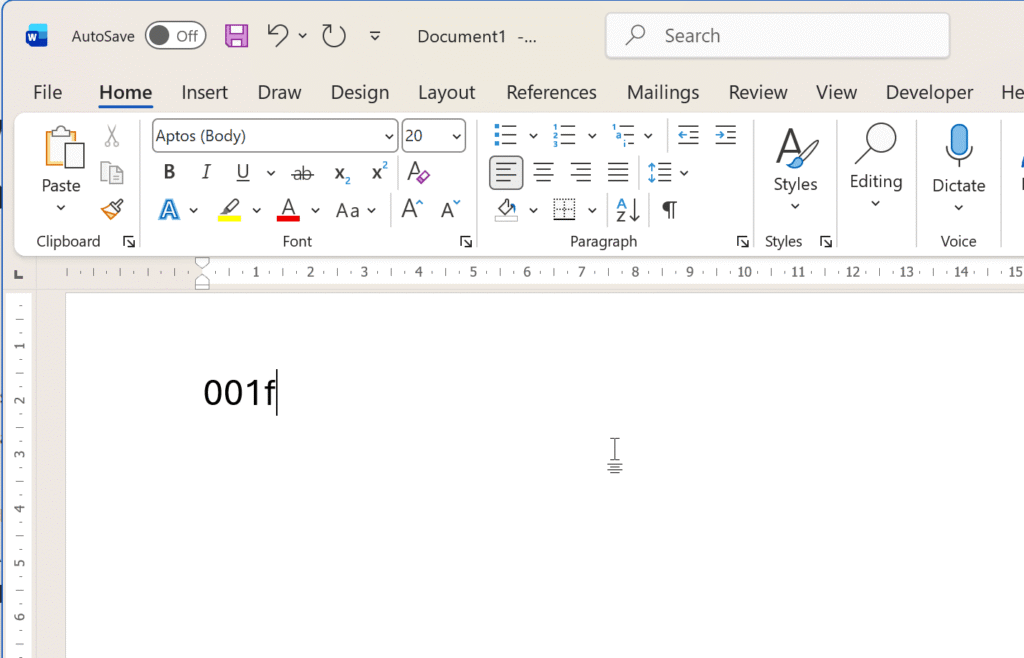
This method is especially useful for people who type multilingual documents regularly and want something cleaner than remembering older decimal codes. A detailed reference with practical examples is available at https://copypastefree.com/alt-x-for-word/.
Method 3: Copy accented letters from a symbol page
Sometimes the fastest solution is not memorizing anything at all. If you only need a few accented letters occasionally, copying and pasting them can be the simplest option.
A symbol page is helpful when:
- You need a character quickly.
- Your laptop keyboard does not support easy Alt code input.
- You are using a browser, form, or app where keyboard methods feel awkward.
- You want to avoid typing the wrong code.
A practical reference for this is https://copypastefree.com/symbol/, where you can find many characters and copy them directly into your text.
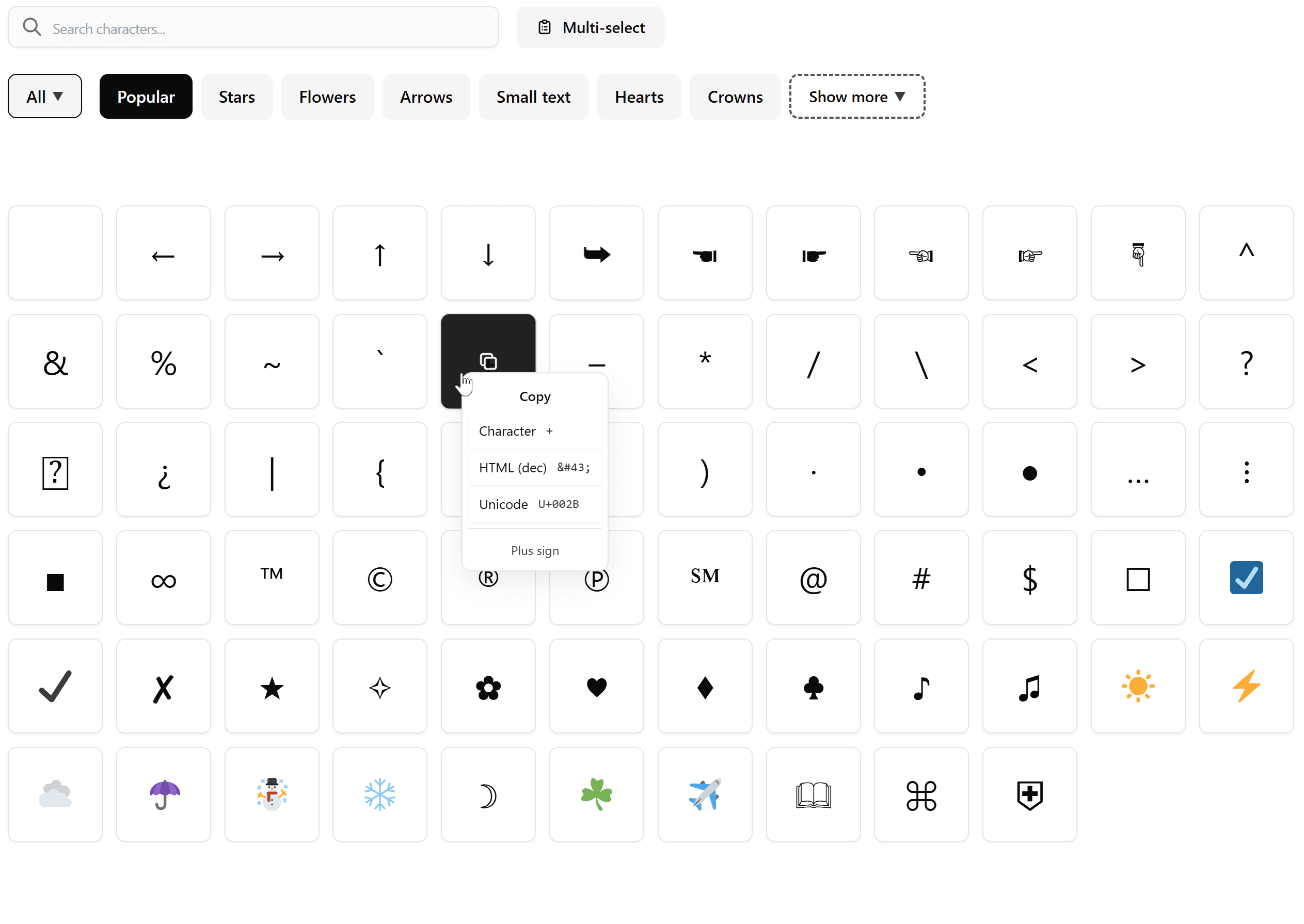
This approach is especially convenient for names, short messages, usernames, captions, and one-off edits.
Method 4: Use Character Map in Windows
Windows includes a built-in tool called Character Map. It lets you browse characters visually and copy the one you need.
To open Character Map:
Step 1: Press the Windows key.
Step 2: Type Character Map.
Step 3: Open the app.
Step 4: Choose a font if needed.
Step 5: Find the accented letter.
Step 6: Click Select, then Copy.
After that, paste the letter into your document, browser, or app.
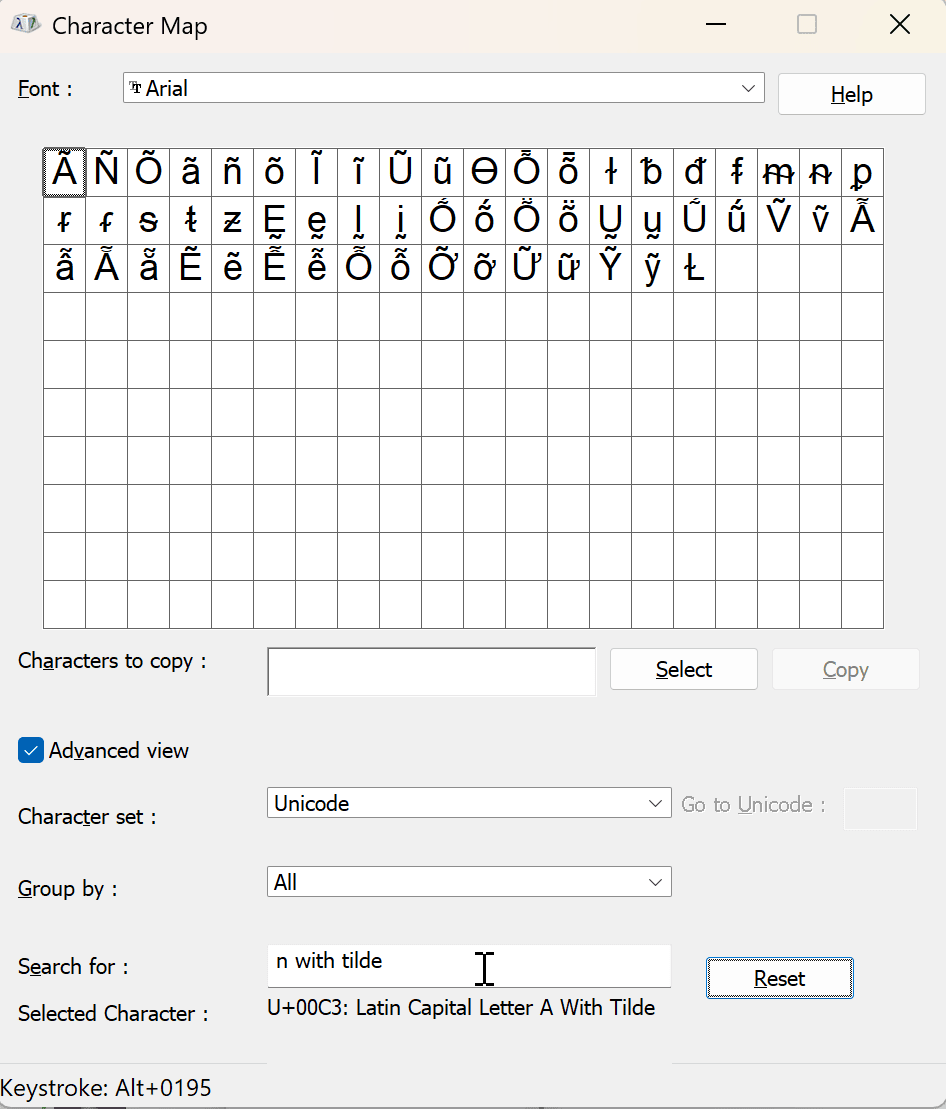
Character Map is slower than keyboard shortcuts, but it is very useful when you cannot remember a code or want to explore less common characters.
Method 5: Switch to the right keyboard layout
If you frequently type in Spanish, French, German, Portuguese, or other languages, changing your keyboard layout may be the most efficient long-term solution.
Windows allows you to add extra keyboard layouts so that accent marks and language-specific letters are easier to type.
To add a keyboard layout in Windows 11:
Step 1: Open Settings.
Step 2: Go to Time & language.
Step 3: Open Language & region.
Step 4: Select your language.
Step 5: Click Language options.
Step 6: Add a keyboard layout.
Once enabled, you can switch between layouts from the taskbar or with a keyboard shortcut such as Windows + Space.
This method is ideal for people who write in another language every day rather than occasionally.
Common accented letters and how people usually type them
Here are some of the most searched characters when people want to type accented letters on Windows:
How to type ñ on Windows laptop
The letter ñ is common in Spanish. On many systems, Alt + 164 gives lowercase ñ and Alt + 165 gives uppercase Ñ.
If Alt codes are inconvenient on your laptop, copying ñ from a symbol page or using a Spanish keyboard layout is often easier.
How to type á and é on Windows laptop
These vowels appear in many languages and names. Common Alt codes include:
á = Alt + 160
é = Alt + 130
If you only need them once in a while, copy and paste can be faster. If you use them regularly in Word, Alt X may be more practical.
How to type ü on Windows laptop
The letter ü is often used in German and some borrowed words. A common Alt code is:
ü = Alt + 129
This character is also easy to find in Character Map if you do not want to rely on number codes.
How to type ç on Windows laptop
The cedilla character ç appears in many European languages and in words borrowed into English. A common Alt code is:
ç = Alt + 135
It is also simple to copy from a symbol list when needed.
What to do if Alt codes are not working
Many users think the code is wrong when the real issue is the keyboard setup. If Alt codes are not working on your Windows laptop, these are the usual reasons:
- Num Lock is off
- The laptop has no active numeric keypad
- The numbers were typed from the top row instead of the numpad
- The app does not recognize the input the same way
- The keyboard uses a layout that behaves differently
If that happens, do not waste time forcing the same method. Try Character Map, a symbol page, or Alt X in Word instead.
Best method for different situations
The best answer to how to type accented letters on Windows laptop depends on your situation.
For quick one-time use, copy and paste is often the fastest.
For Word documents, Alt X is clean and efficient.
For classic Windows input, Alt codes remain useful if your laptop supports them well.
For frequent typing in another language, switching keyboard layout is usually the smartest long-term option.
Final thoughts
Typing accented letters on Windows laptop does not have to interrupt your workflow. Whether you need ñ, á, é, ü, ç, or other special characters, Windows already offers several practical ways to handle them.
For occasional use, copying from a symbol page is quick and painless. For document work, Word shortcuts can save time. For regular multilingual typing, a proper keyboard layout makes the biggest difference.
Once you settle on the method that matches your laptop and your habits, accented letters become just another part of normal typing instead of a problem you have to solve every time.