There are moments when a document needs a word count, but Microsoft Word is simply not part of the workflow. Maybe the text is sitting in a browser tab, a notes app, an email draft, a comment box, or a plain text file. Maybe Word is not installed. Maybe opening a large desktop app just to check a number feels unnecessary. In all of those cases, the real question is practical: how to count words in text without Word quickly, accurately, and without extra friction.
The good news is that counting words no longer depends on a single program. A modern online tool can do the job in seconds while also showing useful details such as line count, character count, blank lines, and characters without spaces. For anyone working with web content, assignments, scripts, product descriptions, captions, or plain text, that approach is often faster and more convenient than using Word at all.
Why people look for a way to count words without Word
Microsoft Word remains familiar, but it is not always the easiest option. Many people now write directly inside browsers, content management systems, note-taking apps, chat tools, and online editors. In those situations, copying text into Word just to see the word count creates an extra step that slows everything down.
That is why the topic how to count words in text without Word matters so much. It reflects a real shift in how people write. The text often already exists somewhere else, so the best solution is a tool that works directly with raw text.
An online word counter is especially useful when the goal is to:
- check the number of words in pasted text
- count lines and characters at the same time
- clean up extra spaces or blank lines
- remove duplicate lines before finalizing text
- work on any device without installing software
The easiest way to count words in text without Microsoft Word
The simplest method is to use an online word counting tool. Open the page, paste the text, and let the tool calculate the result instantly.
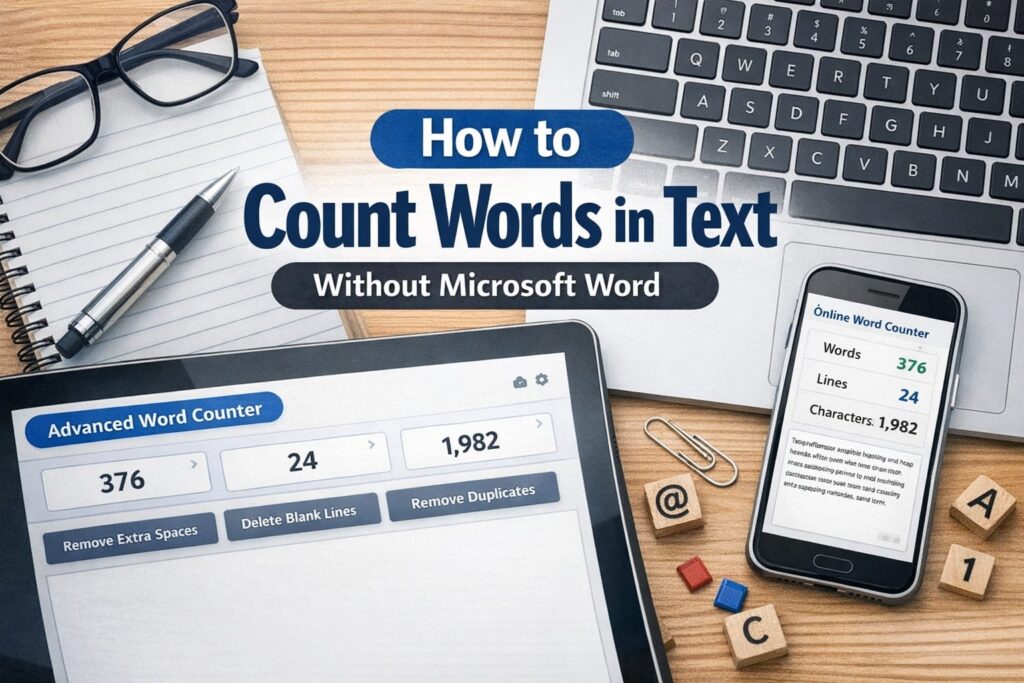
A tool like the advanced word counter online is designed for exactly that kind of workflow. It displays words, lines, and characters in a clear stats area, and it also includes text-cleaning options such as removing blank lines, trimming lines, removing duplicates, and merging repeated spaces.
That makes it more than a simple counter. It becomes a practical workspace for handling text before publishing, submitting, or reusing it.
How to count words in text without Microsoft Word step by step
The process is straightforward and does not require any software installation.
Step 1: Open an online word counter.
Go to the advanced word counter online.
Step 2: Paste the text into the input box.
Copy the text from your email draft, website editor, note, chat, or file. Then paste it into the large text area. The tool is built around a central input field where the content can be typed or pasted directly.

Step 3: Read the live statistics.
As soon as the text appears, the tool updates the counts automatically. It shows the number of lines, words, and characters in the header section, so the answer is visible immediately without extra clicks.
Step 4: Review extra text details if needed.
If the text needs a closer check, look at the footer stats. These include non-empty lines, blank lines, and characters without spaces, which can be helpful when working with formatting-heavy text or content guidelines.

Step 5: Clean the text if necessary.
If the text contains blank lines, uneven spacing, or duplicate entries, use the built-in tools before checking the final result. The available options include removing blank lines, trimming line edges, removing duplicates, and merging spaces.
This workflow is one of the main reasons many people now prefer an online word counter over traditional desktop software.
What an online word counter can show besides word count
Word count is usually the main target, but other text metrics often matter just as much. A more capable tool helps users understand the full shape of the content instead of showing only one number.
Useful measurements often include:
- total words
- total lines
- total characters
- non-empty lines
- blank lines
- characters without spaces
These extra numbers can be important for different tasks. Writers may need word count for articles or speeches. Students may need character count for short-answer limits. Editors may need line counts for structured text. Developers and publishers may want to strip blank lines before moving content into another system.
That broader view is what makes a text counter more useful than a basic built-in word count somewhere else.
When counting words without Microsoft Word is actually better
In many cases, working without Microsoft Word is not a compromise at all. It is the better choice.
An online tool is often faster because there is no document to create, save, or format. It is also more flexible because it works with plain text from almost any source. For users who spend most of their time in browsers, this is a more natural way to work.
It is especially helpful for:
- blog writers checking draft length
- students reviewing assignment limits
- freelancers preparing copy for clients
- marketers counting ad text or captions
- web publishers cleaning pasted content
- anyone working on a shared computer without Word installed
For those users, the question is no longer whether Word is necessary. It is whether there is any reason to open Word at all.
How to prepare messy text before counting it
Raw text is often not clean. It may come with blank lines, inconsistent spacing, duplicated entries, or copied formatting habits from other platforms. That can make the content harder to review and sometimes harder to measure in a meaningful way.
A better approach is to clean the text before making final decisions. Tools that allow line trimming, blank-line removal, duplicate filtering, and space merging are especially useful because they help transform pasted text into a cleaner draft before the final count is checked.
This is particularly useful when working with:
- copied chat logs
- imported email content
- product lists
- keyword collections
- subtitle lines
- repeated prompt blocks
If the job involves generating repeated text patterns before testing length, an online text repeater can also help create sample content quickly before it is pasted into the counter for measurement. Used together, the two tools support both text generation and text analysis in a simple browser-based workflow.
How symbols and special characters can affect text review
Some texts are not made only of standard words and sentences. They may include decorative marks, arrows, bullets, stars, or special symbols. These elements are common in social posts, stylized bios, promotional text, and certain formatting-heavy drafts.
When checking content like that, a symbol reference can still be useful. A page such as the symbol collection helps users find and copy special characters for text-based content, while the word counter helps measure the final result after those elements are added.
This matters because real-world writing is not always plain paragraphs. Sometimes the text needs both styling and accurate counting.
Common situations where Word is not available
People often search count words without Microsoft Word because the need appears in everyday situations, not formal writing sessions.
A few common examples include:
- writing directly inside WordPress or another CMS
- checking a school response from a browser-based form
- reviewing text on a Chromebook
- counting words from a plain text editor
- measuring copied text from a PDF or web page
- editing content on a phone or tablet
In each case, the solution is the same: paste the text into a reliable browser-based counter and read the results immediately.
Mistakes to avoid when checking word count
Counting words seems simple, but a few small mistakes can lead to confusion.
One common mistake is counting from messy text full of duplicates or extra spaces. Another is assuming that every platform counts words exactly the same way. A third is overlooking blank lines and formatting when the text is being prepared for publication or submission.
A cleaner workflow usually looks like this:
- paste the raw text
- review the initial word count
- clean the text if needed
- check the updated count again
- copy the final version for use elsewhere
That sequence reduces surprises later.
Final thoughts
Learning how to count words in text without Microsoft Word is less about replacing one program and more about choosing a workflow that fits the way people actually write today. Most text now moves through browsers, web editors, notes apps, and online platforms. In that environment, opening Microsoft Word just to check a number often feels unnecessary.
A browser-based tool such as the advanced word counter online offers a faster and more practical solution. It not only counts words, lines, and characters, but also helps clean the text before it is finalized. For users who also work with repeated strings or special formatting, related tools like the online text repeater and the symbol collection fit naturally into the same workflow.
In the end, counting words without Microsoft Word is not difficult at all. With the right online tool, it becomes quicker, cleaner, and often more convenient than the old method.