We have all been there. You are typing up a name like José, a foreign word like résumé, or a school assignment, and suddenly you hit a wall. You know that letter needs an accent, but your keyboard is just staring back at you, unhelpful. What should have taken two seconds turns into a frustrating game of random guessing, weird shortcuts, and way too much backspacing.
I’ve wasted more time than I’d like to admit trying to find the “alt” combination for a single letter. So, I put this guide together to show you the most practical ways to type accented letters in Microsoft Word. Whether you want the fastest built-in shortcuts or a long-term keyboard solution that actually makes sense, we’ll find the method that fits your typing habits and, more importantly, your level of patience. 😉
What are accented letters and why does Word act so weird about them?
Accented letters are just characters with little marks—like é, ñ, ü, à, ô, and ç—that tell you how to pronounce a word or distinguish it from another. But Word handles them in a way that can be a bit confusing for the average user.
The problem is that Word supports these characters perfectly, but how you get them onto the screen depends on your keyboard layout, your language settings, and even which version of Word you are using. There is no “one size fits all” answer here. If you are typing a single French word once a month, you need a different solution than someone writing bilingual legal documents every single day.
The fastest method: Word keyboard shortcuts
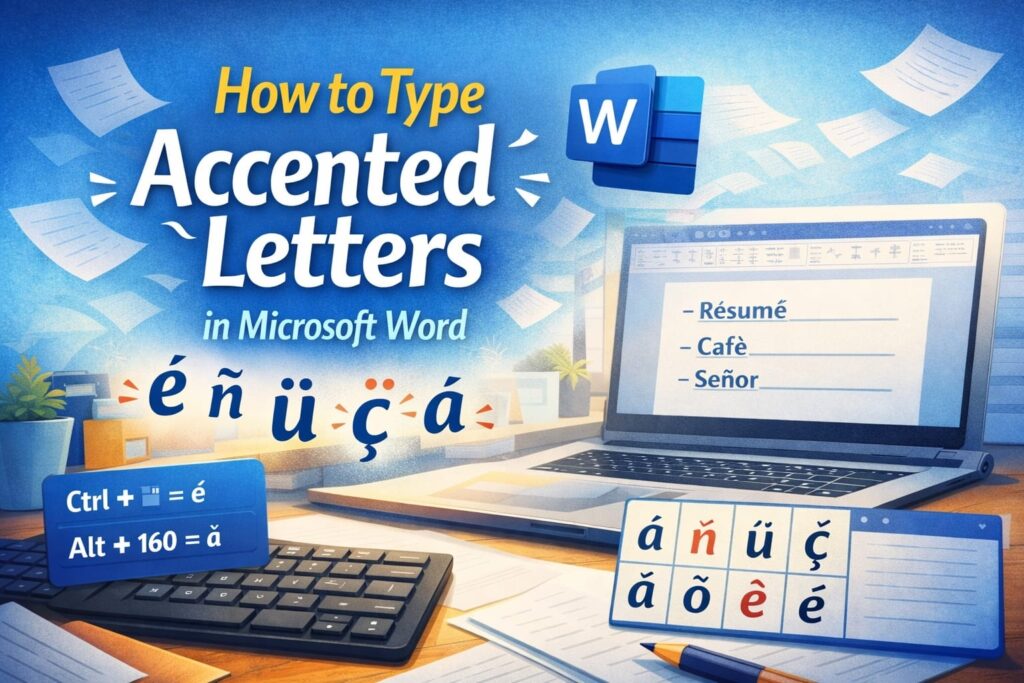
This is usually the best starting point. You don’t have to change your whole keyboard setup or dive into deep settings menus. Word has built-in combinations for the most common accents.
The trick is to remember the pattern: press the shortcut for the accent mark first, and then press the letter you want to accent.
- Ctrl + ‘ (apostrophe), then e for é
- Ctrl + ` (the key above Tab), then a for à
- Ctrl + Shift + ^ (the 6 key), then o for ô
- Ctrl + Shift + : (colon), then u for ü
- Ctrl + , (comma), then c for ç
And yes, if you need an uppercase version, just hold Shift when you type the final letter.
I like this method because it’s built right in. But, let’s be honest, these shortcuts are incredibly easy to forget if you aren’t using them every day. I still have to look up the “circumflex” one almost every time I need it.
A visual way: Insert symbols through the ribbon
If shortcuts feel like a memory test you’re failing, you can just use the visual menu. It’s a bit slower, but it’s foolproof.
- Put your cursor where you want the letter.
- Go to the Insert tab at the top.
- Click Symbol on the far right, then select More Symbols.
- Scroll through until you find the character you need.
- Click Insert.
This is the “safe” option for beginners. It’s great when you only need one or two characters, but if you’re writing a five-page paper in Spanish, clicking through menus is going to get old very fast. If you’re really in a rush and just want to grab a letter and go, you can also just use a site to copy and paste accented letters and get back to your work.
The better long-term fix: Change your keyboard layout
If you are regularly typing in Spanish, French, or German, you should probably stop using “hacks” and just change your keyboard layout in Windows.
- Open your Windows Settings.
- Go to Time & language.
- Open Language & region.
- Add the language or keyboard layout you need (like “US-International”).
- Switch between them using the language icon in your taskbar.
The “US-International” layout is a lifesaver. It lets you type accents using “sticky” keys. For example, typing an apostrophe followed by ‘e’ automatically creates ‘é’. It feels much more natural once you get the hang of it. But be warned: it can be annoying when you actually just want to type a normal apostrophe and have to hit the spacebar to make it show up.
The old-school way: Alt codes
Alt codes are the classic fallback for people using a Windows keyboard with a dedicated numeric keypad on the right. You hold down the Alt key and type a specific number code.
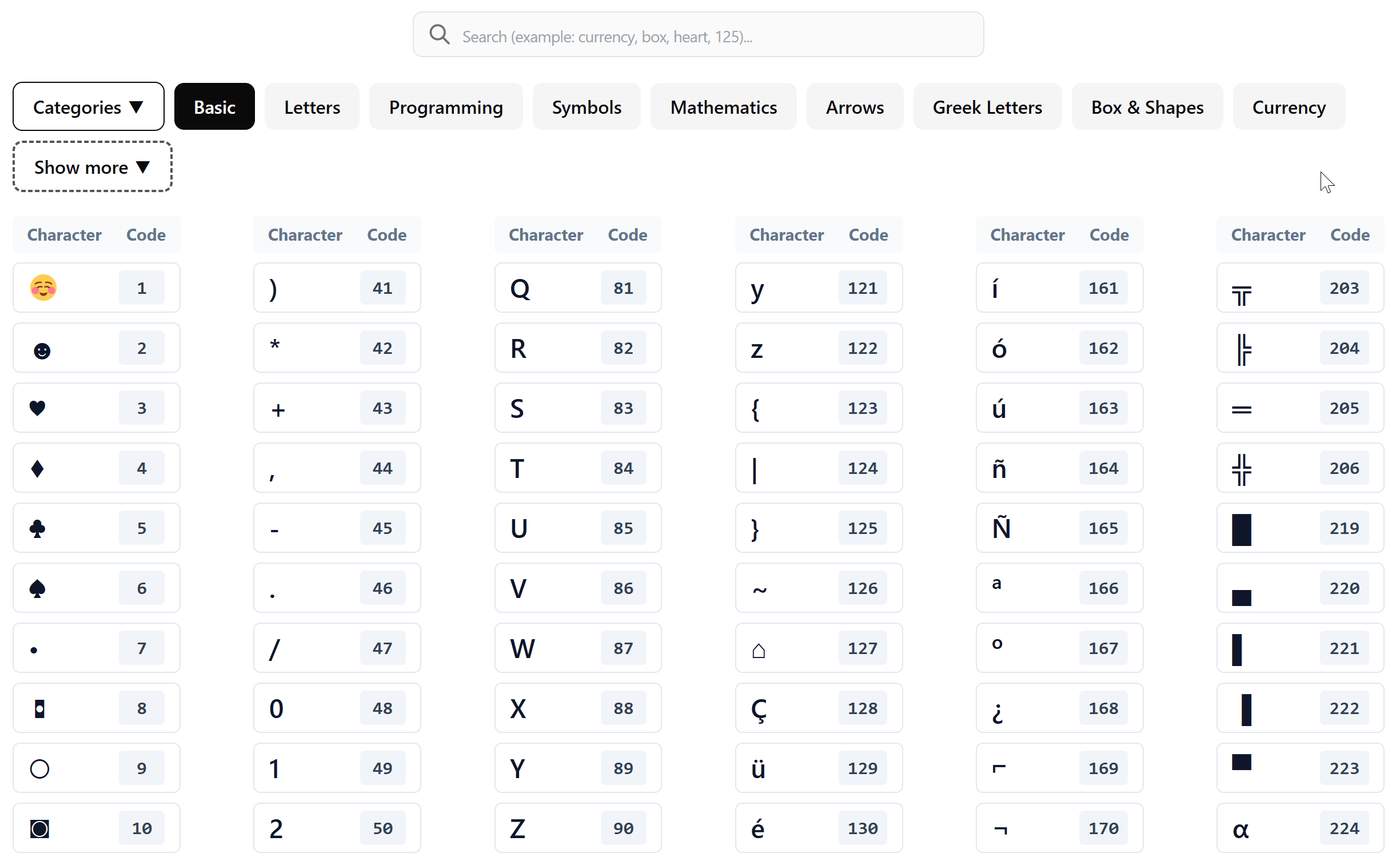
- Alt + 130 for é
- Alt + 160 for á
- Alt + 164 for ñ
- Alt + 129 for ü
But you have to use the numeric keypad; the numbers across the top of your keyboard won’t work. I’ve found that many modern laptops don’t even have these keypads anymore, making this method a bit of a relic. If you want to see a full list of these, you can check out this Alt code decimal chart for the specific numbers.
Which method should you actually use?
Don’t feel like you have to master all of these. It’s about finding what fits your specific situation:
- One-time use? Use the Symbol menu or copy-paste.
- Occasional use? Stick with the Word shortcuts (Ctrl + symbol).
- Frequent multilingual typing? Change your Keyboard layout.
- Old-school pro with a full keyboard? Alt codes are your best friend.
Common mistakes and quick fixes
Sometimes things just don’t work. Here is why:
- The shortcut isn’t working: Make sure you are actually inside Microsoft Word. Most of those “Ctrl” shortcuts are Word-specific and won’t work in your web browser or Notepad.
- Alt codes look like gibberish: Double-check that Num Lock is turned on. If it’s off, your computer thinks you’re trying to use the arrow keys.
- The keyboard feels “wrong”: If your keys aren’t typing what they usually do, you probably accidentally hit Windows Key + Space, which switches your language layout. Just hit it again to switch back.
- Accents look weird elsewhere: If you copy text from Word into an old email program and the accents turn into boxes, it’s usually a character encoding issue. Stick to modern apps whenever possible.
Why these tiny marks actually matter
It might feel like a lot of effort for a little dash over a letter, but it makes a huge difference. Using the right accents in a resume shows attention to detail. In academic papers, it’s the difference between looking like an expert and looking sloppy. Plus, in many languages, a missing accent can literally change the meaning of a word. You don’t want to accidentally say something you didn’t mean just because you were too tired to find the ‘ñ’.
Once you pick one of these methods and use it a few times, it stops feeling like a technical hurdle. It just becomes part of your typing flow. Good luck getting that document finished!